How to View and Understand Your Cases
After submitting cases on support.deepaiges, users can view all their submitted tickets from the dashboard.
Prerequisites
Before you view your cases:
- Ensure you’re signed in at support.deepaiges.com .
- You must have submitted at least one case previously.
- A stable internet connection is recommended for quick loading of tickets.
Steps to View Your Submitted Cases
Step 1: Sign in to the Portal
Visit support.deepaiges.com and sign in using your Deepaiges credentials.
Step 2: Go to Dashboard
Once signed in, you’ll land on the support home screen.
Step 3: Click on “View All Cases”
Click the View All Cases button to see all the tickets you’ve submitted.
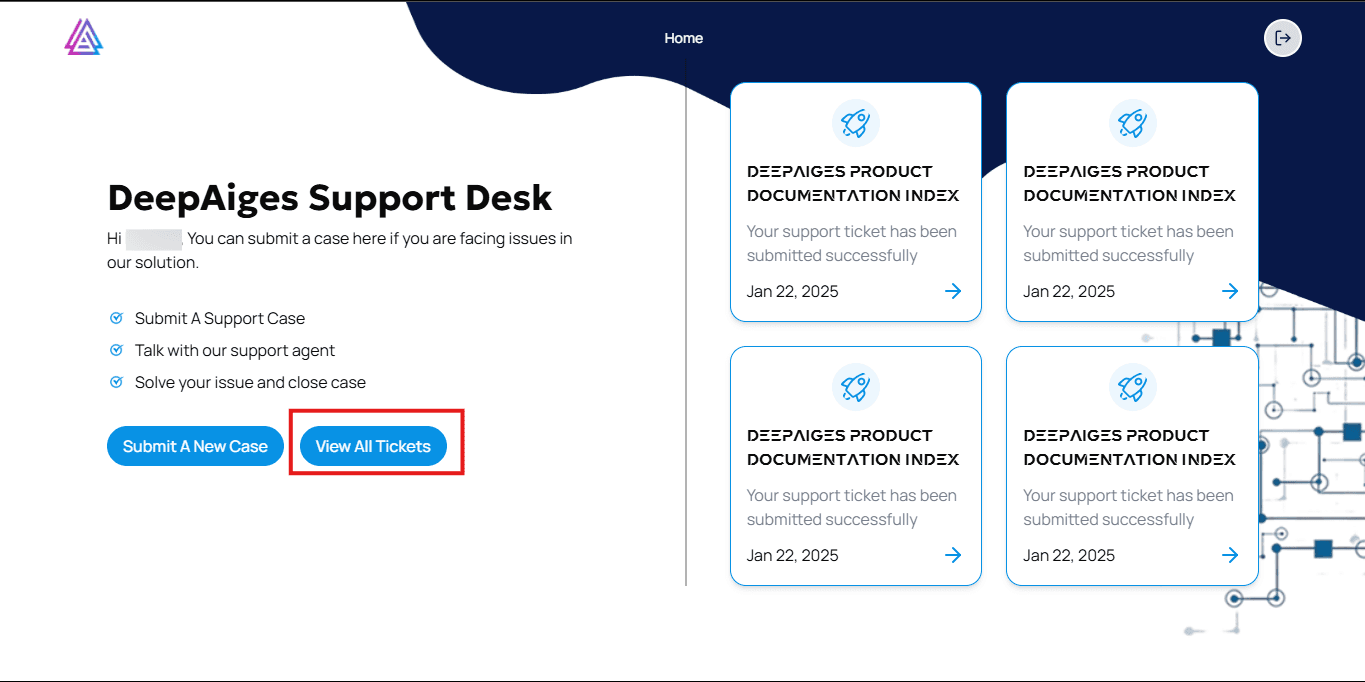
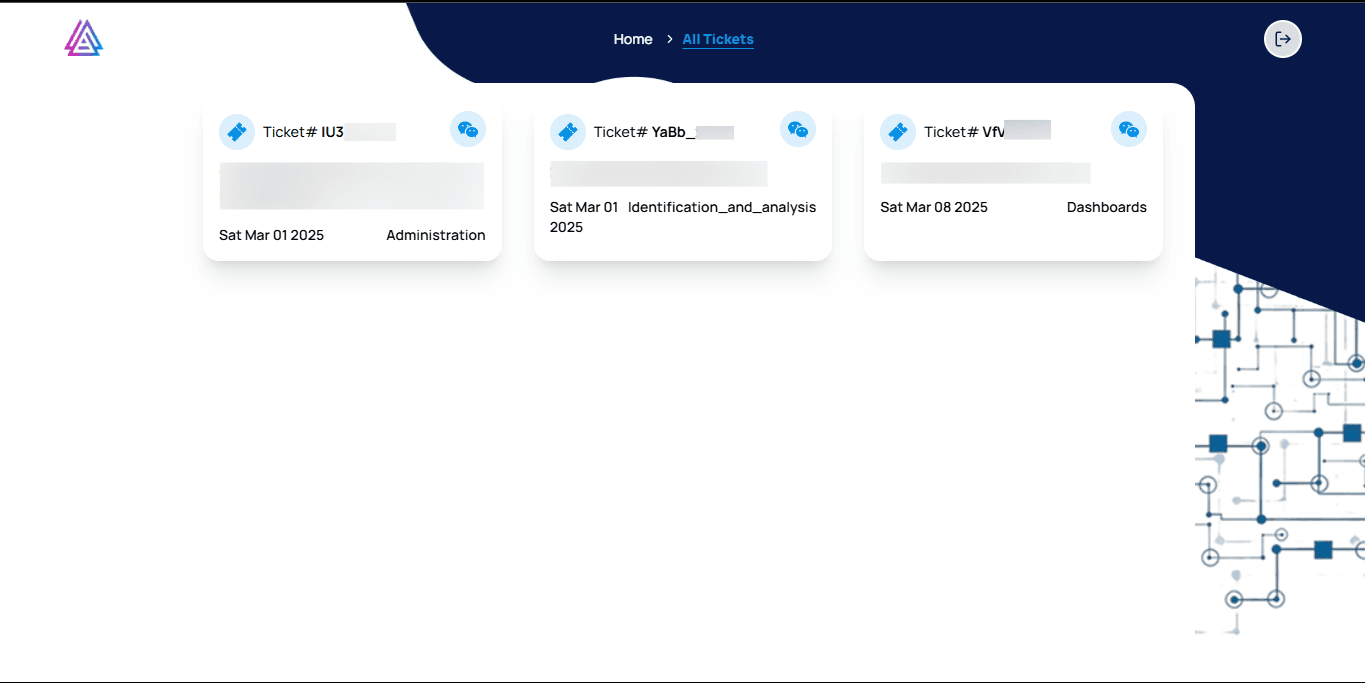
Step 4: Browse Through Your Tickets
A list of tickets will be shown, each card displaying key ticket details.
What is a Ticket?
A ticket (also known as a case) is a record of an issue or request you’ve submitted for support. Each ticket stores:
- Issue title and description
- Submission date
- Category and priority
- Status updates
- Support team responses
Understanding a Ticket Card
Below is a breakdown of the key elements shown in a ticket card:
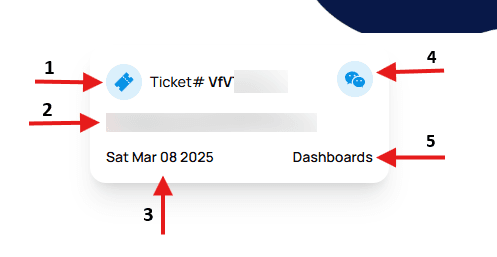
-
Ticket ID
A unique code (e.g.,VFVTVE4A) automatically generated when you submit a case. It helps track the issue through support channels. -
Ticket Title
A brief description or subject of the issue you reported (e.g., “Error in Signing Up”). -
Submission Date
The exact date when the case was submitted. Helps you track progress over time. -
Chat Icon (Conversation Access)
Click this to open a conversation view where you can communicate with the support team regarding your ticket. -
Category
The area related to your issue — e.g., Dashboards, Preparation, Containment and Eradication, etc.
FAQs
1. Why don’t I see any cases?
Make sure you’re logged in with the correct account that submitted the cases. If you still don’t see anything, refresh the page or contact support.
2. Can I update a submitted ticket?
Not directly — but you can continue the conversation using the chat feature inside the ticket.
3. What does the category mean?
It shows the specific module or function your issue relates to, helping the support team route your case efficiently.
4. Can I delete a ticket?
No. Once submitted, cases cannot be deleted for audit and tracking purposes.
🛡️ Reminder: Always sign out after use on shared devices to protect sensitive case information.