Creating Customized Reports with HTML
Customized reports allow you to display information in a visually appealing and structured format. Below, you’ll find an example of creating a simple report layout using HTML, CSS, and JavaScript.
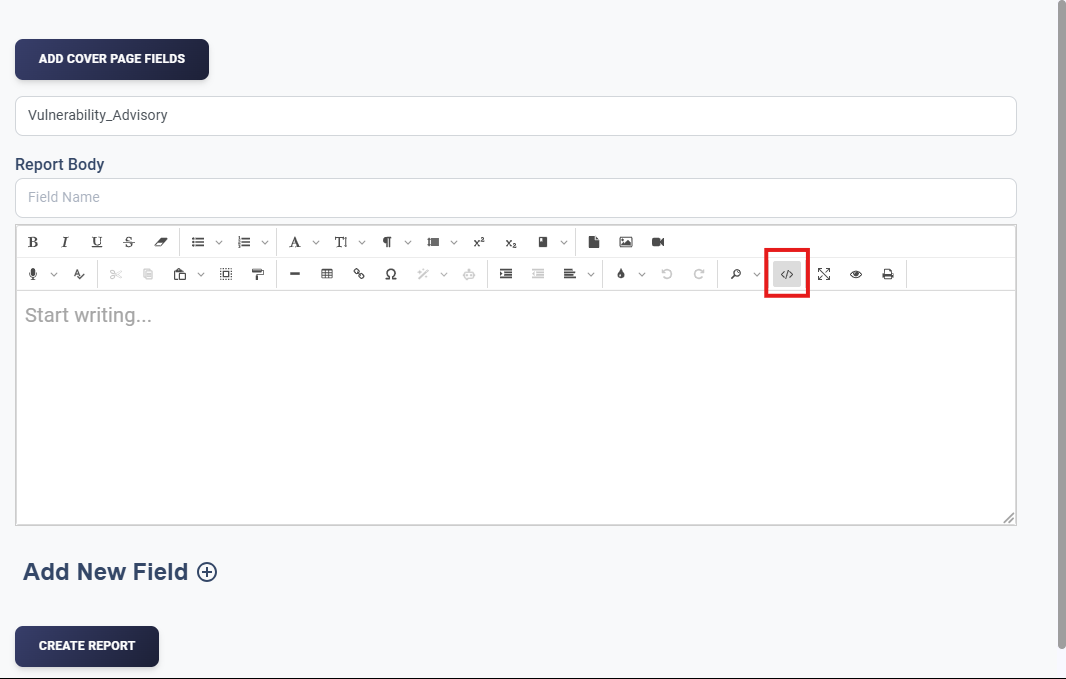
First, create a report (to see how to create a new report refer to Navigating and Using Reporting Section on Deepaiges). You can see the editor, click on the icon highlighted below.
Why Use HTML for Reports?
- Flexibility: You can create reports tailored to your exact needs.
- Styling Options: Use CSS for sophisticated designs and layouts.
- Dynamic Content: Incorporate JavaScript for interactive elements.
:::tip If you make the report public, using HTML, CSS, and JavaScript allows for reusable templates that can be applied to multiple reports. :::
Below is a sample report made using HTML, CSS, and JavaScript.
Step-by-Step Guide to Building a Report
Define the HTML Structure
The structure of a basic report includes headers, sections, and footers.
<body>
<header>
  <h1>Cyber Advisory Report</h1>
</header>
<main>
<section>
<h2>Overview</h2>
<p>This report provides insights into potential vulnerabilities and mitigation strategies.</p>
</section>
<section>
<h2>Details</h2>
<ul>
<li>Identified risks</li>
<li>Recommended actions</li>
<li>Timeline for resolution</li>
</ul>
</section>
</main>
<footer>
<p>© 2025 Cyber Security Team</p>
</footer>
</body>Explanation of HTML Code
<body>
- Purpose: Contains all visible content of the report.
- Structure:
-
Header Section:
<header> <h1>Cyber Advisory Report</h1> </header>- Displays the report’s main title prominently.
-
Main Content:
<main> <section> <h2>Overview</h2> <p>This report provides insights into potential vulnerabilities and mitigation strategies.</p> </section> </main>- Divides the content into sections using
<section>tags. - Uses
<h2>for subheadings and<p>for descriptive text.
- Divides the content into sections using
-
Footer:
<footer> <p>© 2025 Cyber Security Team</p> </footer>- Displays a copyright notice at the bottom of the report.
-
Sample Report Output
If you copy and paste the above HTML and CSS code in your report, the report will look as shown below:
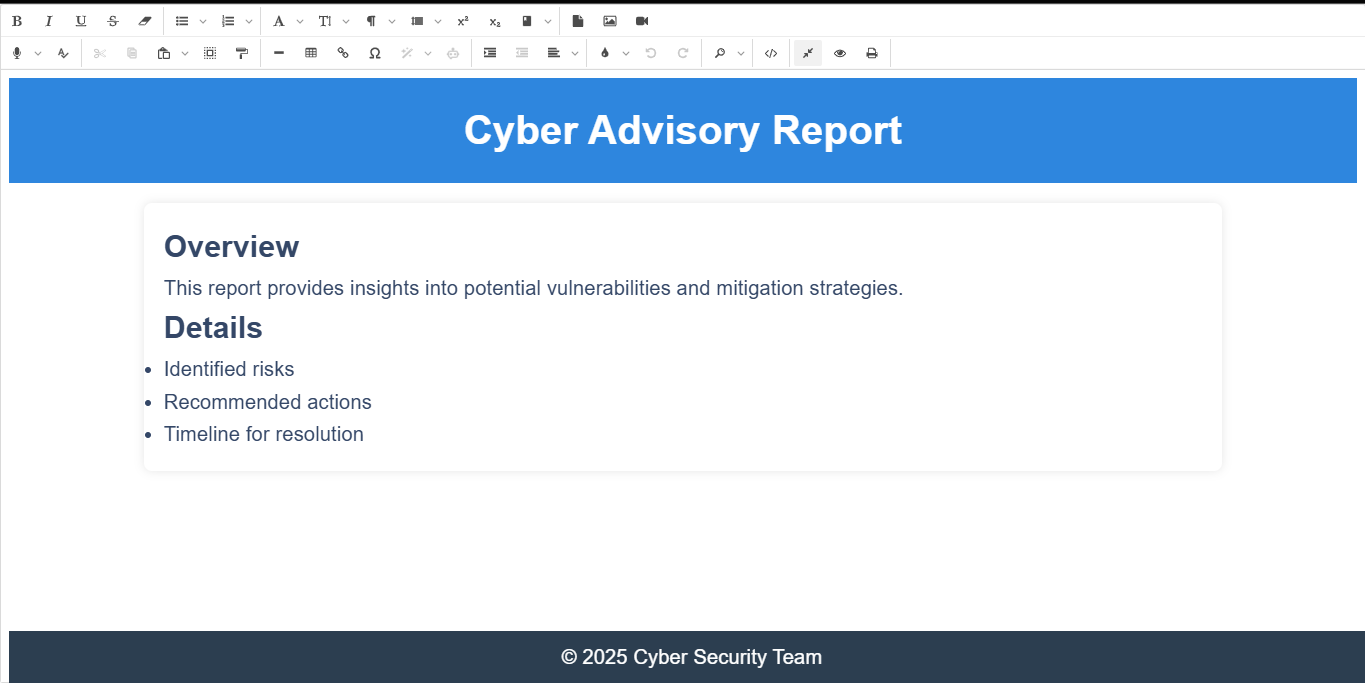
You can build upon this template by adding charts, tables, or advanced interactive features.
Tips for Writing Customizable Reports
:::tip
- Use semantic HTML tags like
<header>,<section>, and<footer>. - Ensure proper indentation for readability.
- Keep your CSS modular and organized and make sure to include
<style>before the CSS content starts and</style>before CSS content ends. - For better handling, add
<p>and</p>tags to wrap HTML and CSS content inside them. This also helps separate HTML and CSS code, making it modular. - Avoid using the
<img>or<a>tag directly; instead, use normal mode (switch to normal by clicking the icon highlighted above). :::
FAQs
1. Why can’t I make my report public?
If you have chosen the Customized template from the pre-existing templates, you can’t make them public due to duplicate report issues. Otherwise, you can make the report public. (Refer to Managing Report Visibility.)
2. Can I include images and videos in my reports?
Absolutely, first switch mode by clicking.
3. How do I add interactivity to my reports?
Although you can add JavaScript to your reports, it won’t render because reports are static, making interactivity impossible.
4. Can I export my report as a PDF?
Yes, you can download your report. For a detailed walk-through, refer to How to Generate and Download a PDF of Your Report.