How to Sign In on support.deepaiges
Support users can securely log in to their accounts on support.deepaiges using credentials linked to their main Deepaiges account at app.deepaiges.com.
Prerequisites
Before signing in:
- You must have an active account on app.deepaiges.com .
- Google Authenticator or any compatible OTP app should be installed on your mobile device.
- Ensure you know the email and password associated with your Deepaiges account.
Steps to Sign In
Navigate to the Support Portal
Visit support.deepaiges.com to begin the sign-in process.
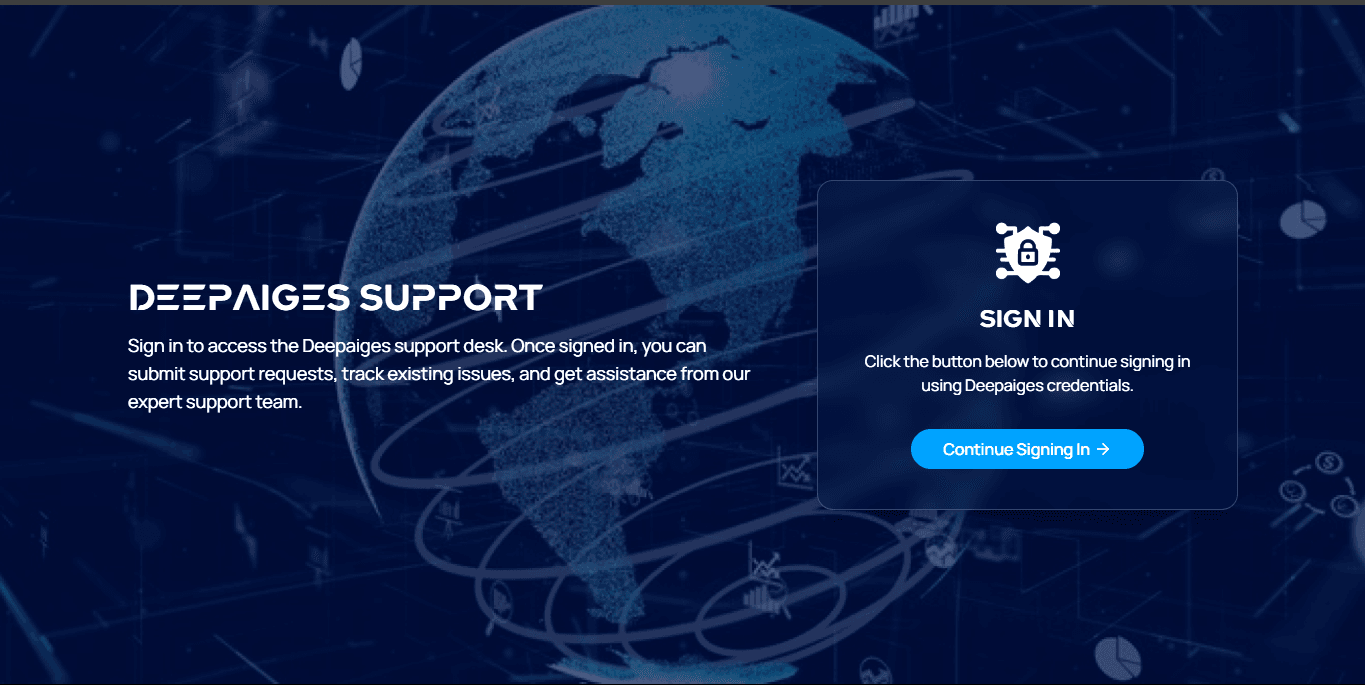
Click “Continue Signing In”
Click the Continue Signing in button on the portal homepage.
Authenticate with Deepaiges
A pop-up will appear prompting you to log in with your Deepaiges credentials.
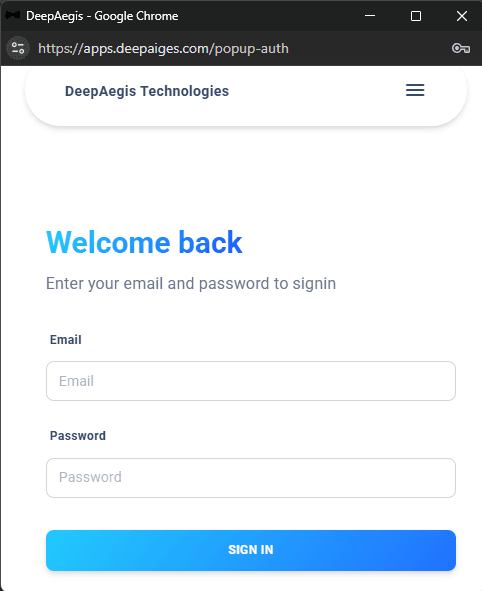
Enter Email and Password
Use the email and password you registered with at app.deepaiges.com .
Enter OTP from Authenticator
If your credentials are correct, you will be asked to enter a One-Time Password (OTP) generated by your authenticator app.
Successful Sign-In
Once authenticated, you will be redirected to the home screen of support.deepaiges.
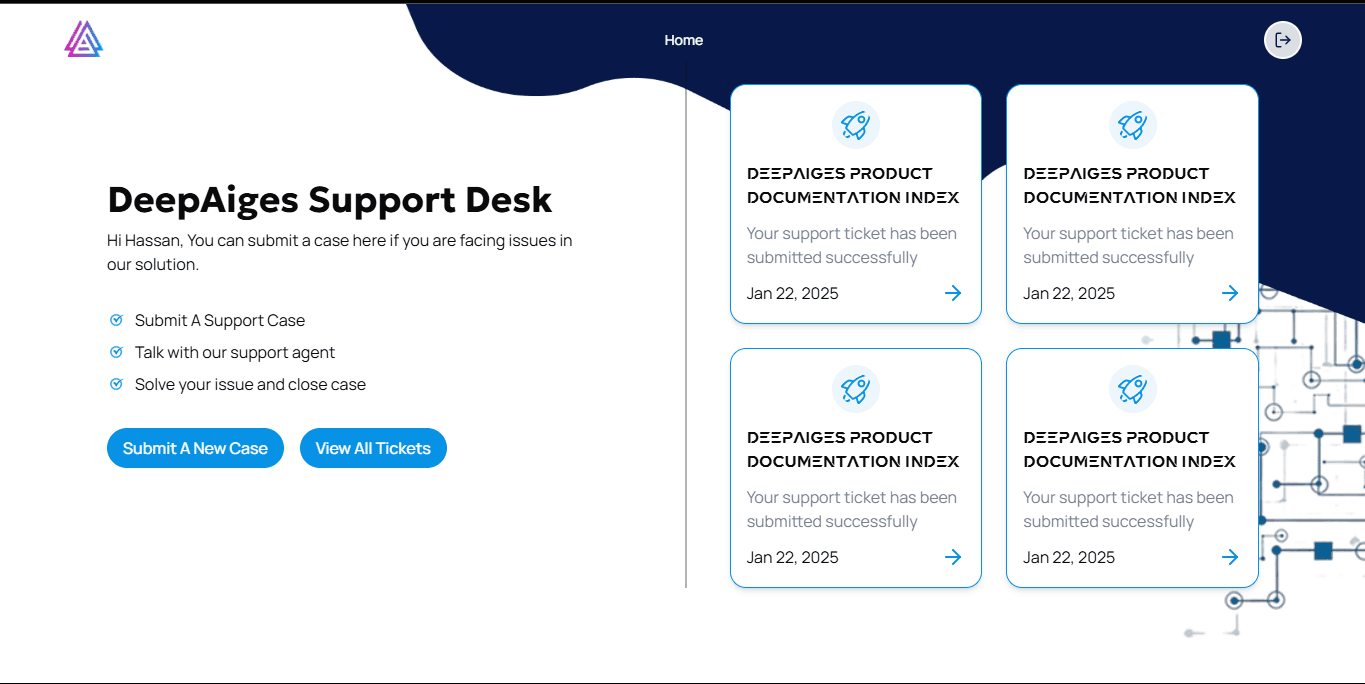
Here, you can view your submitted support tickets on the right side of the dashboard.
Tips for a Seamless Sign-In
:::tip
- Ensure your system time is accurate—this is essential for OTP validation.
- Use a stable internet connection to avoid login disruptions.
- If OTP verification fails repeatedly, try resyncing your authenticator app. :::
🛡️ Security Reminder: Always sign out when using a shared or public device to protect your account.
FAQs
-
Can I log in without an app.deepaiges.com account?
No, a valid Deepaiges account is required to access support.deepaiges. -
What if I forgot my password?
Visit app.deepaiges.com . and follow the password recovery process or refer to the “Reset Password” guide in the getting_started section. -
Why am I not receiving my OTP?
Make sure your device time is synced to the internet and the authenticator app is properly configured. -
Can I use another authenticator app?
Yes, any TOTP-compatible app like Microsoft Authenticator or Authy will work. -
What if the pop-up for login doesn’t show up?
Try disabling pop-up blockers or use a different browser.