Managing Report Visibility
Reports can either be Public or Restricted, depending on your preferences and use case. Below, we explain what each mode entails and how to manage these settings effectively.
Public Reports
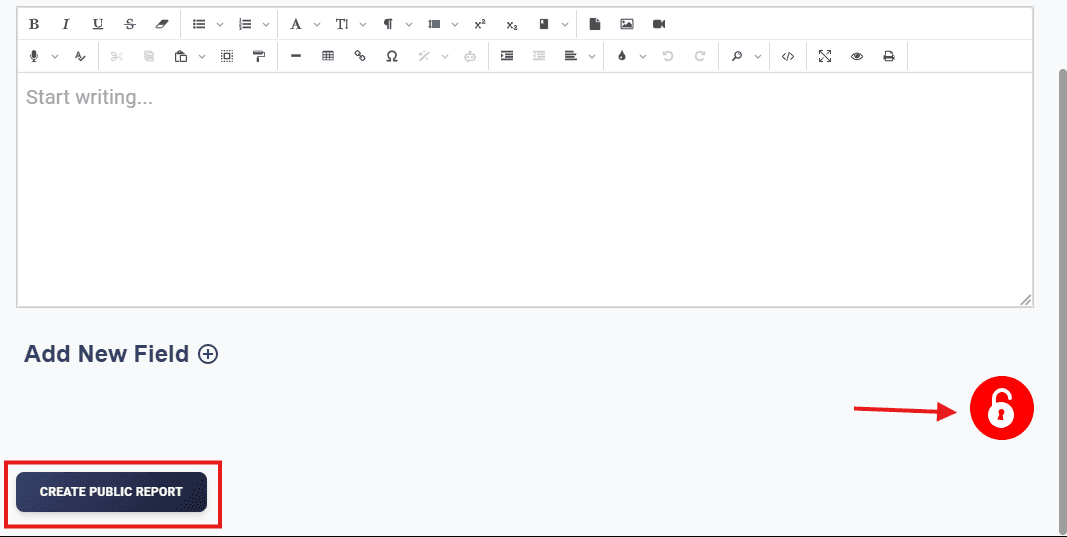
- Who Can Access: Public reports are visible to all registered users in your organization.
- Use Case: Public reports can serve as templates for other users.
- Template Functionality: When another user creates a report using predefined templates, your report content may appear as a selectable layout.
- Important: Public reports are added to the Predefined Templates list, enabling others to reuse them as starting points for their own reports.
Restricted Reports
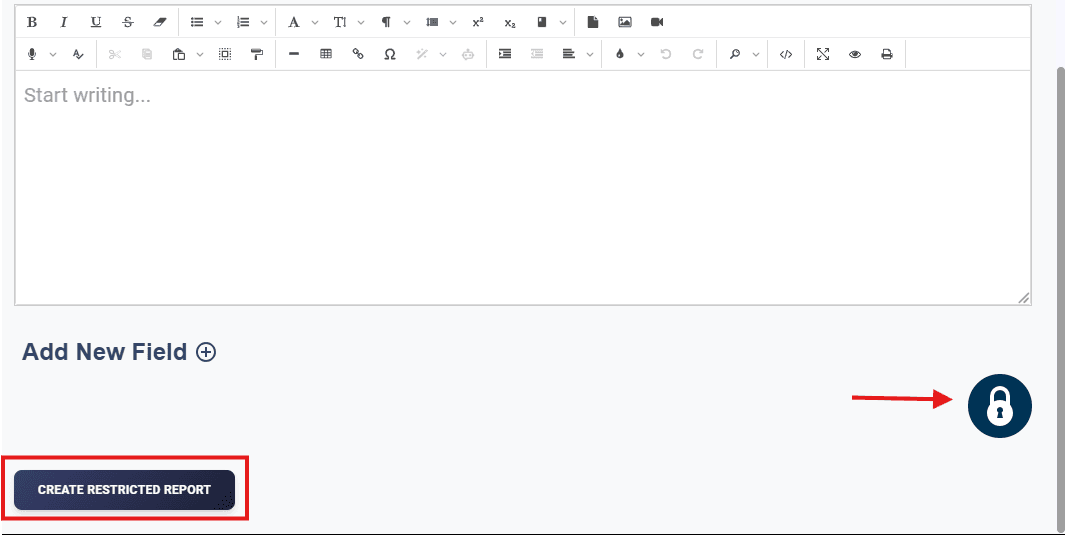
- Who Can Access: Restricted reports are private and visible only to you.
- Edit Access: Only you can edit these reports.
- Default Setting: Reports are created as Restricted by default to ensure privacy.
Note: Reports created using predefined templates are always restricted to avoid duplication issues in the templates list.
How to Switch Between Modes
By default, reports are set to Restricted. If you wish to make your report public:
-
Click the Lock Icon (see the image below for reference).
-
Confirm your choice to share the report publicly.
FAQs
1. What are public reports?
Public reports are shared across your organization and can be used as templates by other users.
2. Can I make a report public after creation?
Yes, click the Lock Icon to switch a report’s mode to Public.
3. Why are predefined template reports always restricted?
This is to avoid duplication. Since public reports are added as templates, allowing their unrestricted use would result in duplicate templates with identical layouts.
4. Can I edit a predefined template?
Yes, you can fully customize templates after selecting them.