How to Edit or Delete Roles
Managing roles in your organization is crucial for ensuring proper permissions and functionalities. Here’s how you can edit or delete roles within your organization.
Editing Roles
To edit a certain role within your organization:
-
Navigate to Administration → Role Management.
-
You will see a list of all current roles in your organization.
-
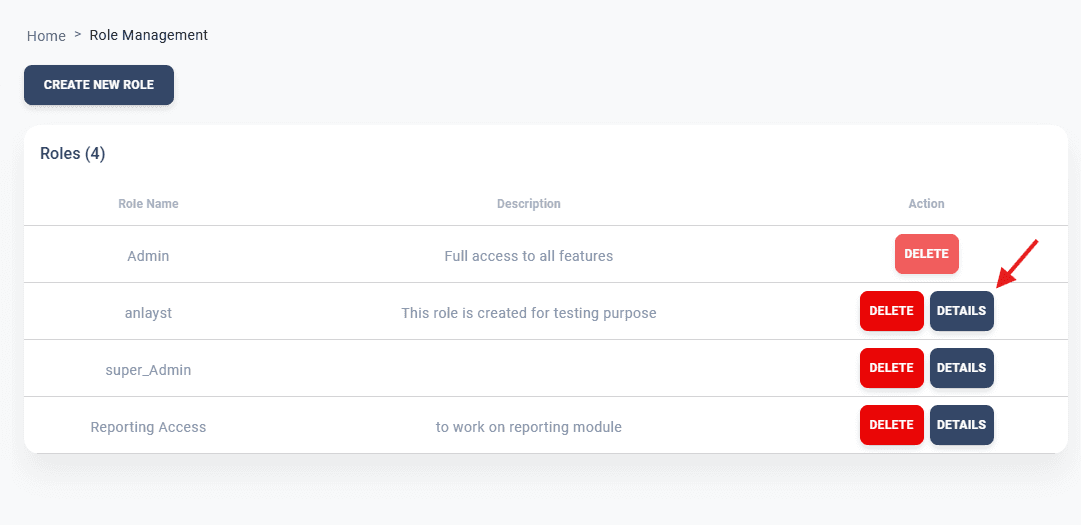
Locate the role you wish to edit and click on DETAILS under the Action header.
-
You will be redirected to the details page, where you can freely update the following:
- Role Name: Modify the role’s title to reflect its purpose.
- Role Description: Update the description to ensure clarity for future references.
- Permissions: Adjust the assigned permissions as needed.
Pre-requisites for Editing Roles
Ensure that:
- You have read and update permissions for managing roles.
- You double-check the changes before saving to avoid misconfigurations.
Tip: Use descriptive role names and concise descriptions to make role management more organized.
Deleting Roles
To delete a role:
-
Navigate to Administration → Role Management.
-
Locate the role you wish to delete and click on the DELETE button next to the DETAILS button.
-
Confirm your action, ensuring you are deleting the correct role.
-
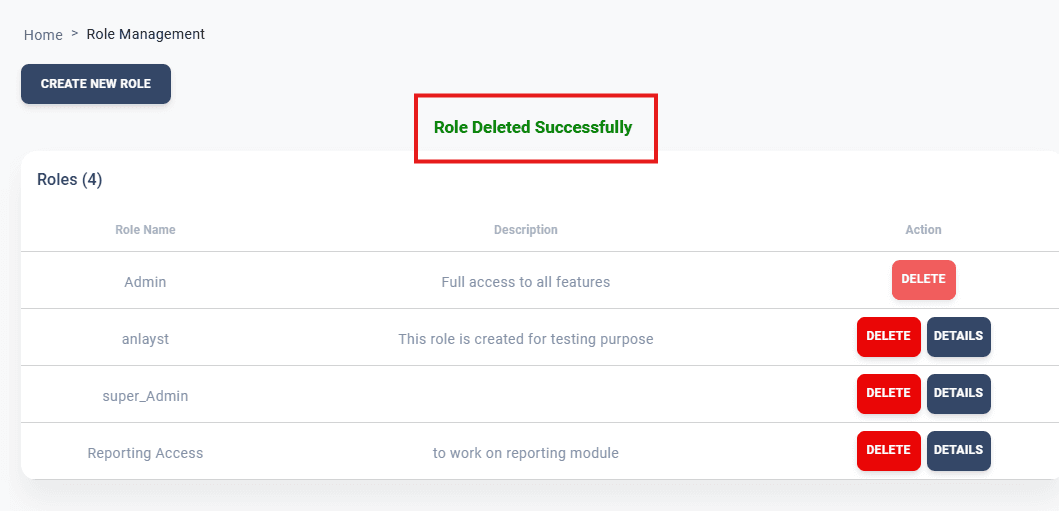
Once deleted, you will see a Role deleted successfully message.
Important Notes
- Deleting a role cannot be undone. Ensure no active users are associated with the role before deleting it.
- Deleted roles will no longer appear in the role list, and users assigned to this role may lose access to certain features.
Warning: Deleting a critical role may disrupt workflows. Always verify the role’s importance and associated users before deletion.