How to Submit a New Case on support.deepaiges
If you’re facing any issues while using Deepaiges, you can submit a case on support.deepaiges, and our support team will look into it.
What is a Case?
- To start you need to understand what a case is. Below is a formal definition of a case.
- A case refers to a formal support request submitted by a user who is experiencing an issue, requesting help, or needing clarification.
Cases help us track, respond, and resolve user concerns efficiently.
Prerequisites
Before submitting a case:
- You must be a registered user on app.deepaiges.com .
- You should be able to log in successfully to support.deepaiges.com .
- Prepare a brief explanation of the issue and any optional attachments/screenshots to help support understand your concern.
Steps to Submit a New Case
Step 1: Sign In
Visit support.deepaiges.com and log in using your Deepaiges credentials.
(Refer to the How to Sign In on support.deepaiges guide if needed.)
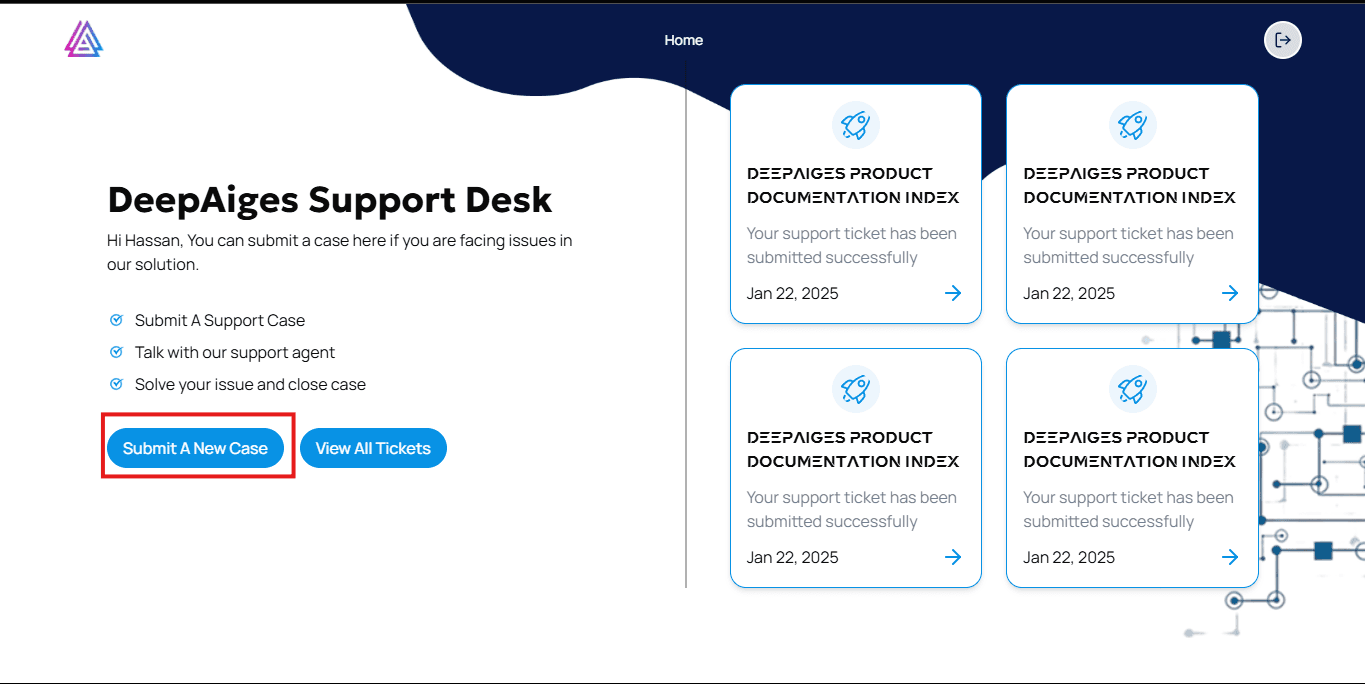
Step 2: Click on “Submit New Case”
Once signed in, you’ll see the Submit New Case button on your home screen.
Step 3: Fill Out the Case Form
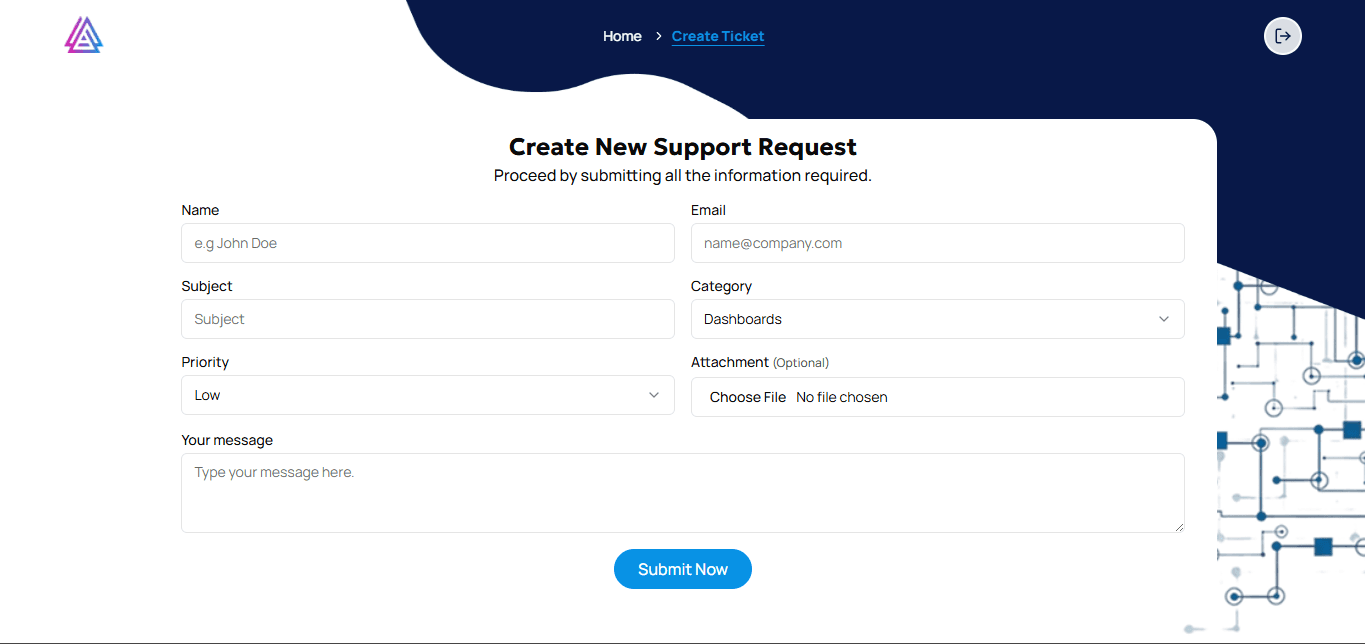
You’ll be presented with a form requiring the following fields:
- Name: Your full name.
- Email: Your registered email.
- Category: The type of issue you’re reporting (e.g., Dashboards, Preparation, Identification and Analysis, Containment and Eradication, Recovery, Administration).
- Priority: Set urgency of the case (Critical, High, Medium, Low).
- Attachment (Optional): Upload a screenshot related to the issue.
- Your Message: A short and clear description of the problem.
Step 4: Submit the Case
Click on the Submit Now button to complete the process.
What Happens Next?
Once submitted:
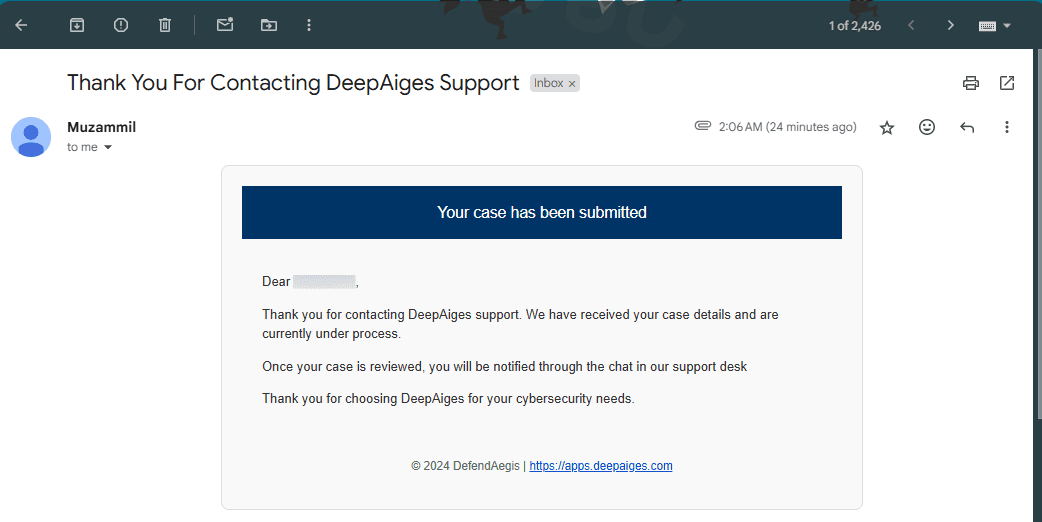
- You will receive a confirmation email from Deepaiges stating that your case has been received.
- Our support team will begin reviewing your submission.
- You’ll be updated as your case progresses through the resolution process.
- You can view the case’s status by going on the homescreen and then by clicking View All Tickets. After you click it you will see a list of tickets you have submitted through out your journey at Deepaiges.
Tips for Submitting Effective Cases
:::tip
- Use concise, clear language in the message section.
- Include screenshots or files that help explain the issue.
- Set the priority level accurately based on urgency.
- Use your registered email to avoid delays in verification. :::
FAQs
1. Do I need a Deepaiges account to submit a case?
Yes, submitting a case requires an active account at app.deepaiges.com .
2. I submitted a case but didn’t get an email—what now?
Check your spam or promotions folder. If you don’t find it, ensure you used the correct email and try submitting again.
3. Can I update a submitted case?
Currently, updates to submitted cases are handled by the support team. You can reply to the confirmation email to share additional details.
4. Can I submit multiple cases?
Yes, you can submit as many cases as needed. Each issue should be submitted as a separate case for efficient tracking.
🛡️ Security Note: Avoid including sensitive login credentials or personal data in your message unless specifically required for diagnosis.