How to Sign Up on Deepaiges
Follow these steps to create your account securely on Deepaiges.
Prerequisites
Before signing up on Deepaiges, ensure you meet the following requirements:
- A valid email address.
- Access to the invite link (if applicable).
- A strong internet connection.
- A smartphone with an authenticator app (for enabling 2FA).
- Admin approval after registration (if required).
Steps to Sign Up
Option 1: Using an Invite Link
If you have received an invite link from an administrator, click the link shared via email to begin the registration process.
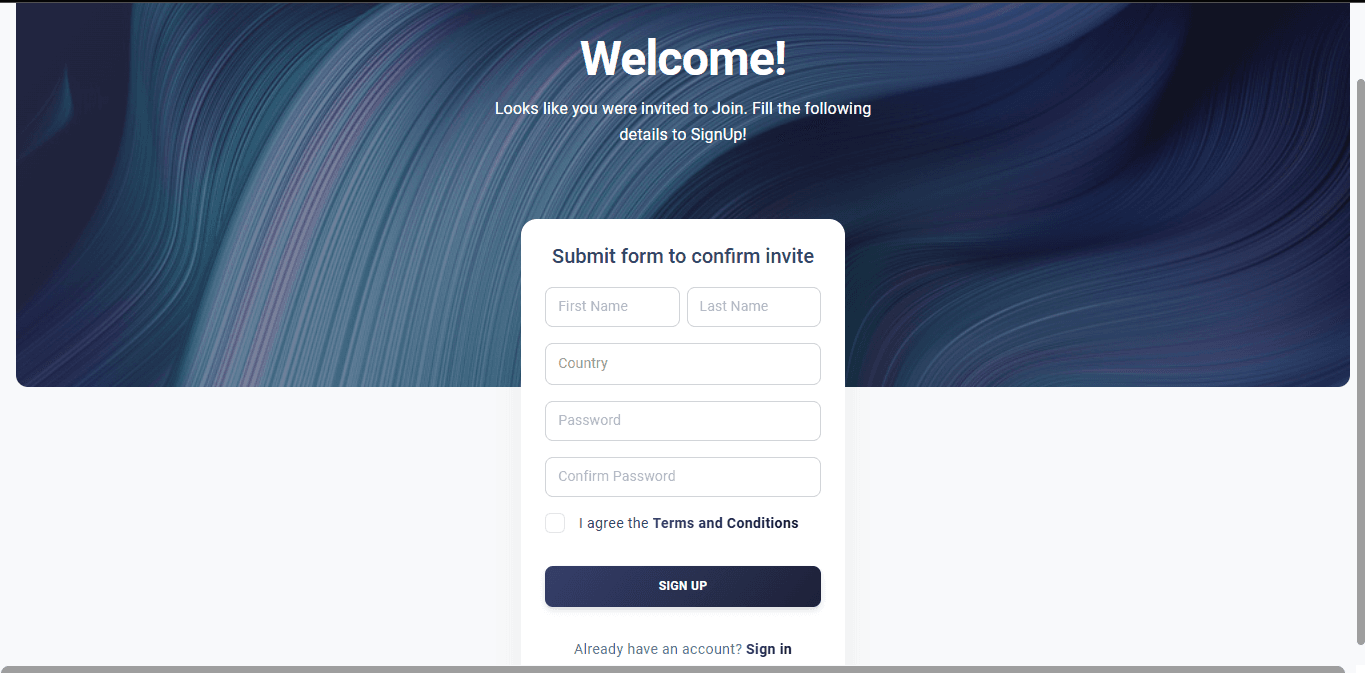
Fill Out Registration Form
Provide the following details:
- First Name and Last Name
- Email Address
- Country
- Secure Password (Refer to password requirements below.)
Option 2: Without an Invite Link
If you don’t have an invite link, visit the Deepaiges Official Website and click the Sign Up button. Follow the same steps to provide your details.
Submit Registration
Click the Sign Up button to submit your registration. Wait for admin approval, which will be confirmed via email.
Password Requirements
Your password is a critical component of your account security. Ensure it meets the following criteria:
- At least 12 characters long.
- Includes:
- One uppercase letter.
- One lowercase letter.
- One number.
- One special character.
- Avoid predictable patterns like
12345or personal information. - Use a password manager for secure storage and generation of passwords.
💡 Pro Tip: Use tools like LastPass or 1Password to manage strong passwords.
Enable Two-Factor Authentication (2FA)
Adding 2FA to your account provides an extra layer of security. Once your account is approved, follow these steps to set up 2FA:
Download an Authenticator App
Install trusted apps like Microsoft Authenticator or Google Authenticator on your smartphone.
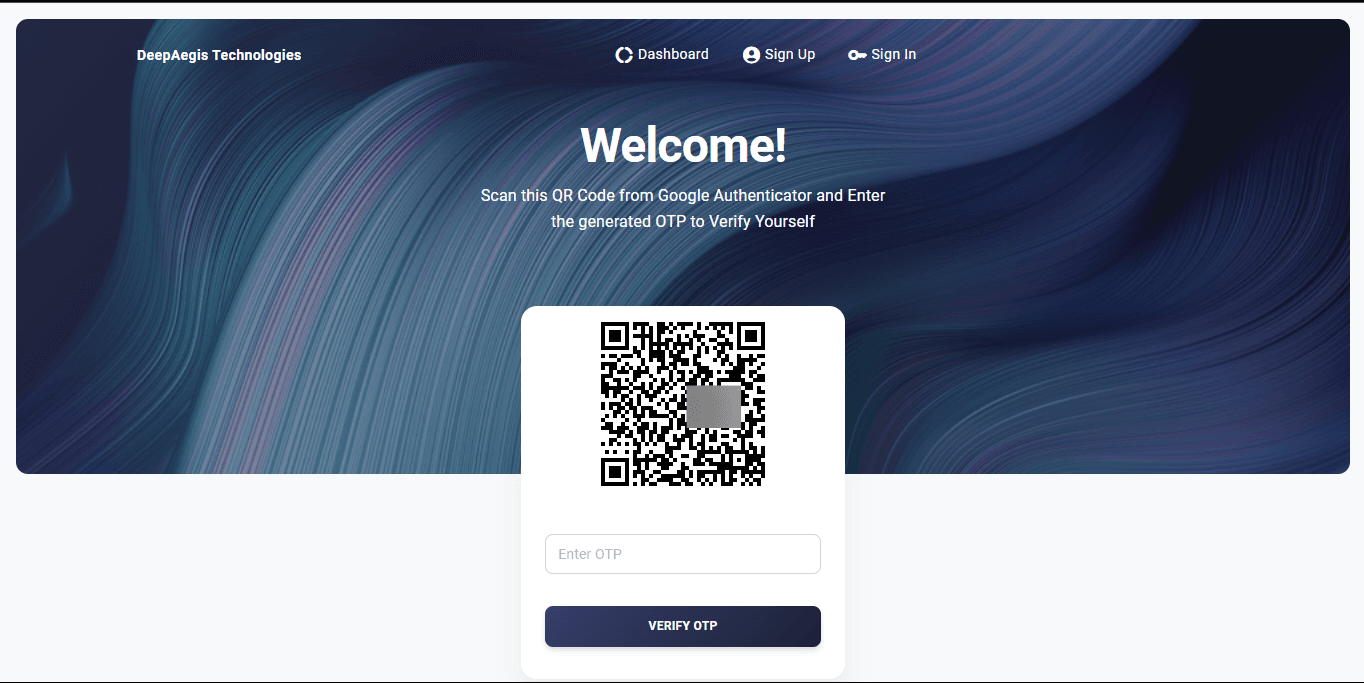
Scan QR Code
You’ll receive a QR code. Use the authenticator app to scan this code.
Retrieve OTP
Generate a One-Time Pin (OTP) from the authenticator app.
Complete Setup
Enter the OTP to finish the 2FA setup.
FAQs
1. Can I sign up without an invite link?
Yes, you can visit the Deepaiges Official Website and click on the Sign Up button to start the registration process.
2. What if I don’t meet the password requirements?
Although you will be able to proceed with the registration, ensuring your password meets the listed criteria under the “Password Requirements” section will better secure your account against brute-force attacks.
3. How long does it take for admin approval?
Admin approval times may vary. You will receive an email notification once your account is approved.
4. Do I need to enable 2FA immediately after registration?
Yes, enabling 2FA is highly recommended to secure your account.
5. What should I do if I lose access to my authenticator app?
Ensure you back up your 2FA recovery codes during setup. If lost, contact Deepaiges support to regain access to your account.