How to View Your Organization
You can easily view your organization by navigating to Administration → Organization. Once there, you will see the following details about your organization:
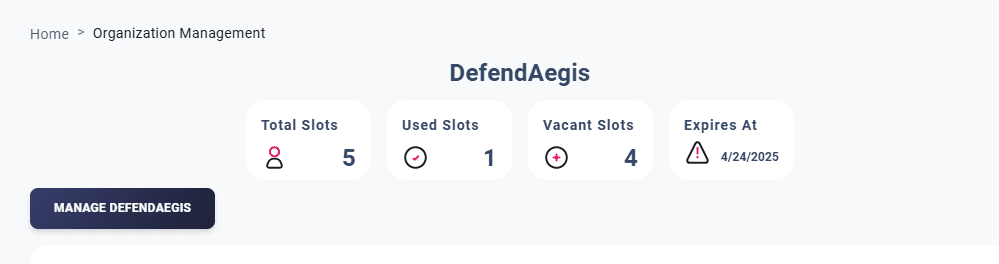
The above heading/terms are explained below:
Organization Details
Total Slots
This shows the total number of slots allocated to you by the Deepaiges Admin.
Used Slots
The number of slots you have used so far.
Vacant Slots
These are the currently available slots. If you see 0 vacant slots, you cannot invite more users to your organization. If you need more slots, please contact Admin.
Expiry Date
This is the date when your license will expire. After this date, you will no longer be able to access any roles. To extend the expiry date, contact Admin.
Manage Your Organization
Along with these details, you will find a:
Manage (Your Organization Name) button. Click it to manage your organization. For a detailed guide, see Managing Your Organization.
User Management
Below the management button, you will see a list of users in your organization. If you are the admin, you can:
- Invite New Users: You can invite new users to join your organization.
- Assign or Update Roles: Change the roles of existing users based on their responsibilities.
- Delete Users: Remove users who no longer need access to the organization.