Managing Your Organization
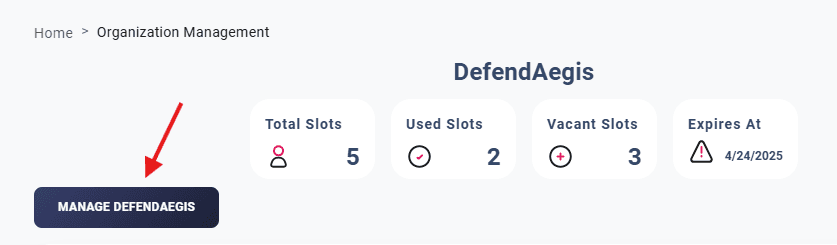
To effectively manage your organization, ensure that you are within your organization’s workspace. If not, navigate to Administration → Organization.
Click the Manage Organization button. A dropdown menu will appear with the following options:
- Invite New Users
- View Permissions
- Upload Logo
Inviting New Users
To invite new users, select Invite New Users from the dropdown. Ensure the following prerequisites are met:
- You are an Admin of your organization.
- The invitee has a corporate email associated with your organization.
Steps to Invite Users
Open the Invitation Menu
After selecting Invite New Users, a text box will appear.
Enter the Email Address
Enter the email address of the person you wish to invite.
Send the Invitation
Click the Invite button.
Note: An invitation email will be sent to the user. Ensure the email address entered is correct.
Post-Invitation Status
- Once invited, the user will be displayed under the Current Users in Organization section.
- If the user has not accepted the invitation, their status will be shown as Pending Invitation.
- Upon accepting the invite, the status will update to Verified User.
You can then perform the following actions:
- Assign Roles: Assign roles to the user. Refer to How to Assign Roles to Users for more details.
- Delete Users: Remove users by clicking the Delete button.
Viewing Permissions
To view permissions assigned to you by the Admin, select View Permissions from the dropdown menu. A detailed list of your permissions will be displayed.
Uploading a Logo
To upload your organization’s logo, follow these steps:
Open the Upload Menu
Select Upload Logo from the dropdown menu.
Choose a File
Select a file from your local computer.
Upload the Logo
Confirm and upload the selected file.
Guidelines for Uploading
- The file must be in PNG or JPEG format.
- The file size should not exceed 5 MB.
Uploading a logo enhances your organization’s identity and maintains a professional appearance.
Notes
- Ensure all actions are performed within your organization’s guidelines.
- Contact your Admin or support team for assistance.
💡 Best Practice: Regularly review user roles and permissions to ensure proper access control.