Chat with Deepaiges Support on Your Ticket
Once a ticket has been submitted, you can start a direct chat with Deepaiges support staff to receive updates or provide more details.
Prerequisites
Before initiating a chat:
- You must be signed in at support.deepaiges.com .
- A ticket must already be submitted.
- Make sure you have a stable internet connection for real-time conversation.
Steps to Chat with Deepaiges Support
Step 1: Log In
Go to support.deepaiges.com and sign in using your Deepaiges credentials.
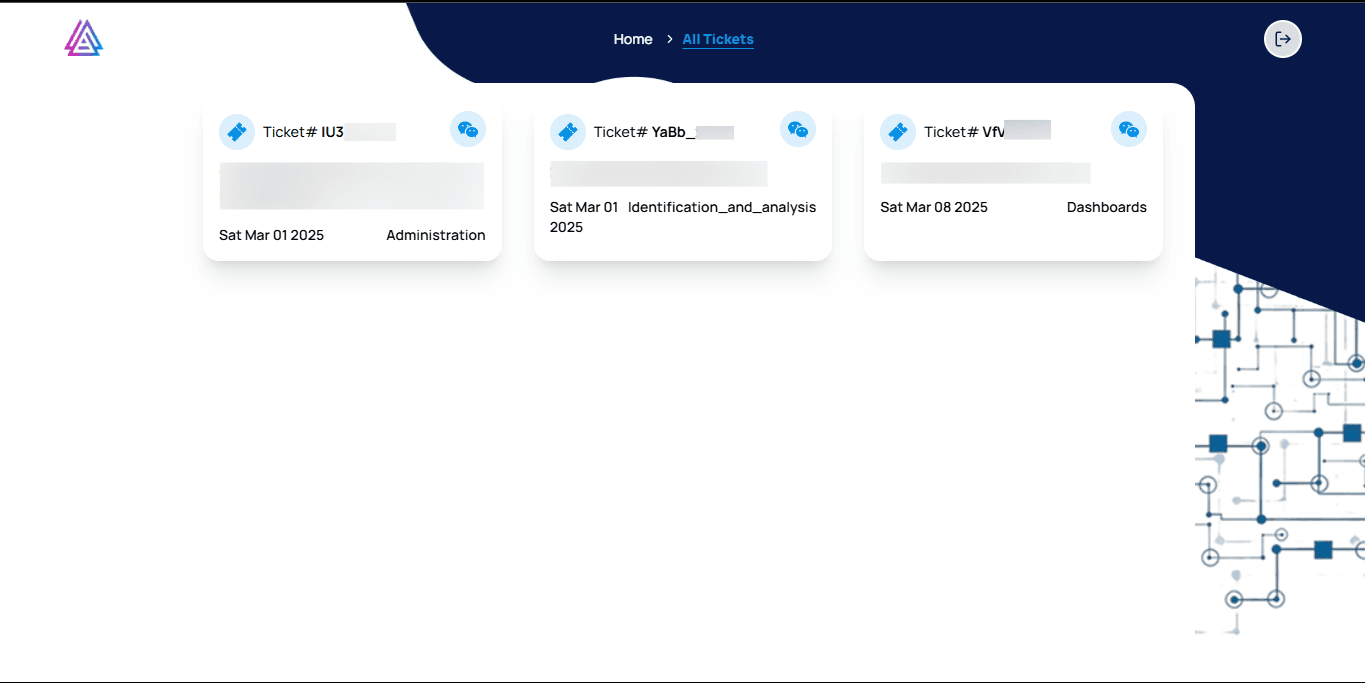
Step 2: Click “View All Tickets”
From the homepage/dashboard, click on the View All Tickets button.
Step 3: Open a Ticket Chat
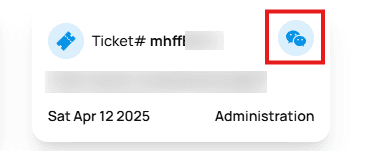
Find the ticket you want to follow up on.
Click the chat icon located at the top-right of the ticket card.
Step 4: Start Chatting
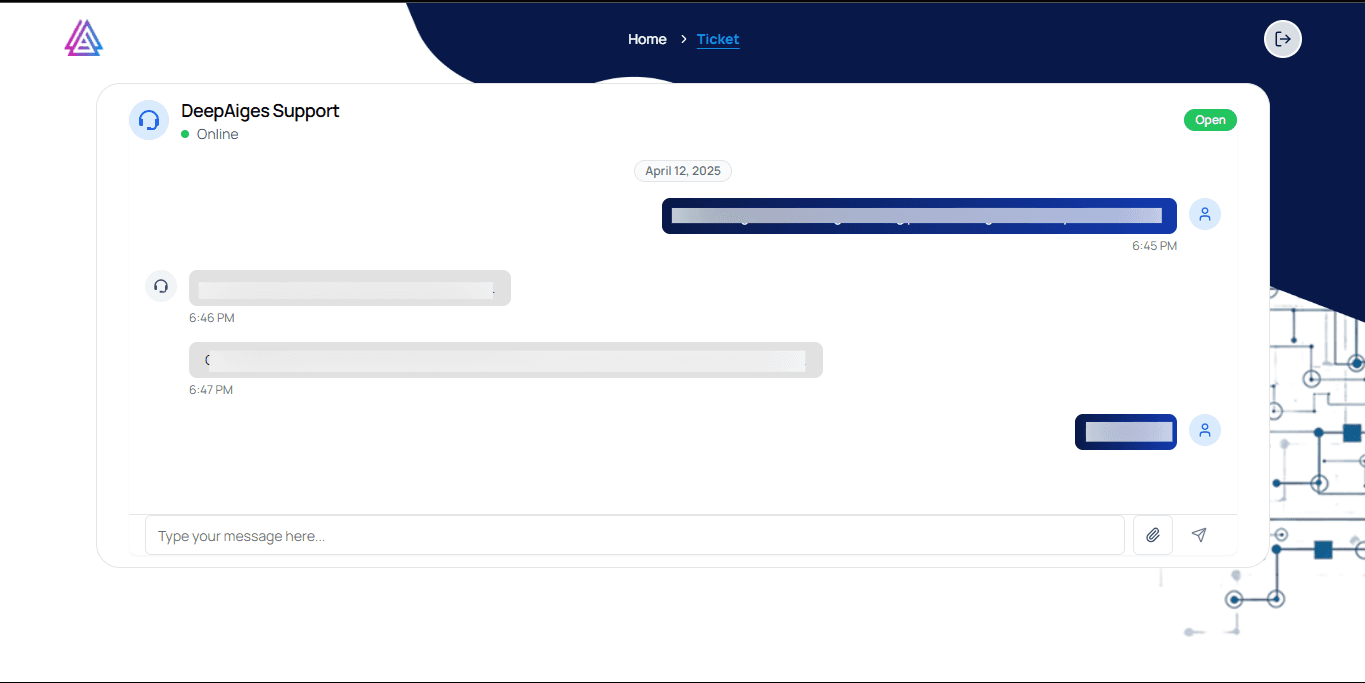
A new chat window will appear. Type your message to begin communicating with a Deepaiges support official.
What is Ticket Chat?
Ticket Chat is a real-time conversation feature built into each submitted ticket. It allows users to:
- Ask follow-up questions
- Provide extra context or attachments
- Get live updates from support
FAQs
1. Who will I be chatting with?
You will be chatting with an official Deepaiges support agent assigned to your case.
2. Can I attach images in the chat?
Yes, depending on the chat interface, you can upload attachments to help describe your issue better.
3. Will I be notified when the support team replies?
Yes, you will receive an email notification when there’s a reply.
4. Can I start a new conversation in the same ticket?
Yes, you can continue chatting on the same ticket until the case is marked resolved or closed.
💬 Tip: Use the chat to clarify your problem quickly and provide visuals to accelerate resolution.