Navigating and Using the Reporting Section on Deepaiges
The Reporting Section in Administration allows you to create, view, and manage comprehensive reports tailored to your needs.
How to Access the Reporting Section
- Log in to your Deepaiges account.
- In the sidebar menu, navigate to:
Administration → Reporting
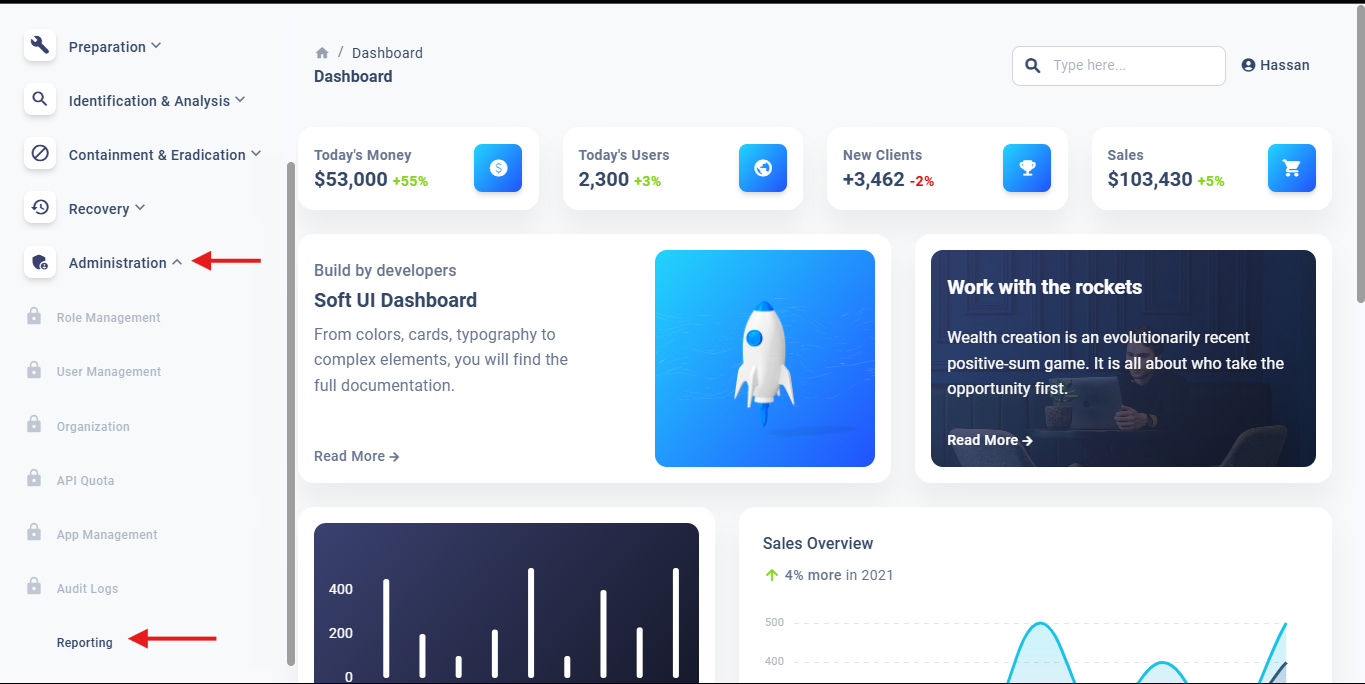
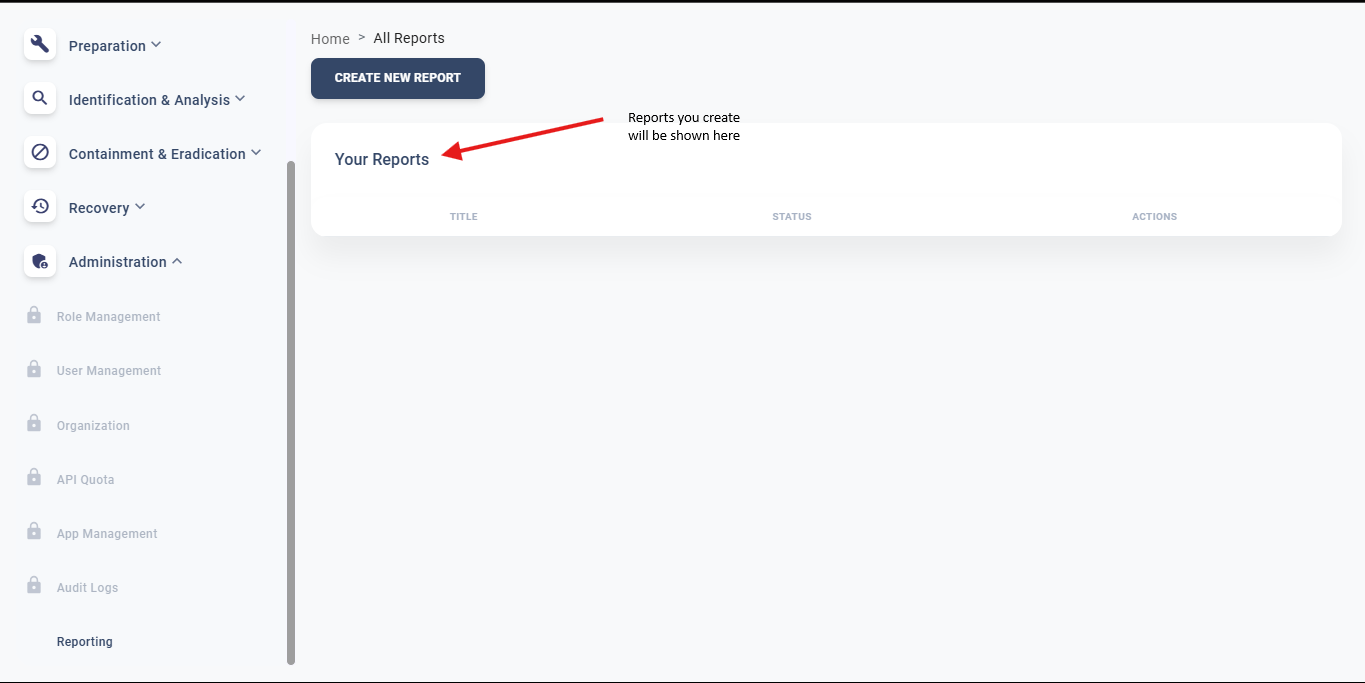
💡 Note: If you’ve just signed up, the Reporting Section will be empty. Start by creating your first report.
Creating a New Report
- Click the Create New Report button.
- Choose one of the following options:
- Start from scratch: Build a fully custom report.
- Use predefined templates: Quickly generate reports using existing formats.
💡 Note: For a detailed guide on using predefined templates, see how to use predefined templates in reporting section.
Creating a Report from Scratch
If you choose to create a report from scratch, follow these steps:
- Select your preferred method for inputting data:
- Upload an existing file (.docx format).
- Manually write the content using the built-in editor.
- Add the required fields to your report, such as:
- Cover Page Fields (Logo, Customer Name, Header, Footer, Assessment Date).
- Report Title.
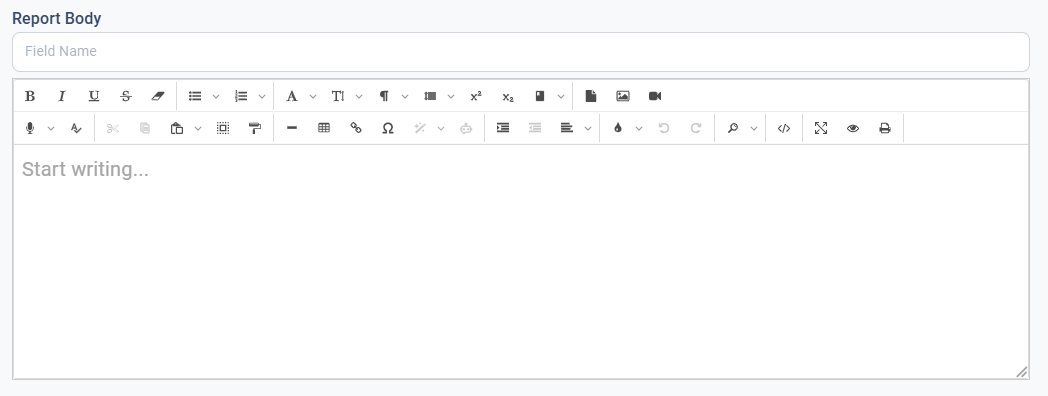
- Write the body of the report using the MS Word-like editor. Key features include:
- Inserting files, images, or videos.
- Adding links or embedding content.
- Using styles like warning, error, and alignment classes.
- Previewing the report before finalizing it.
Publishing Your Report
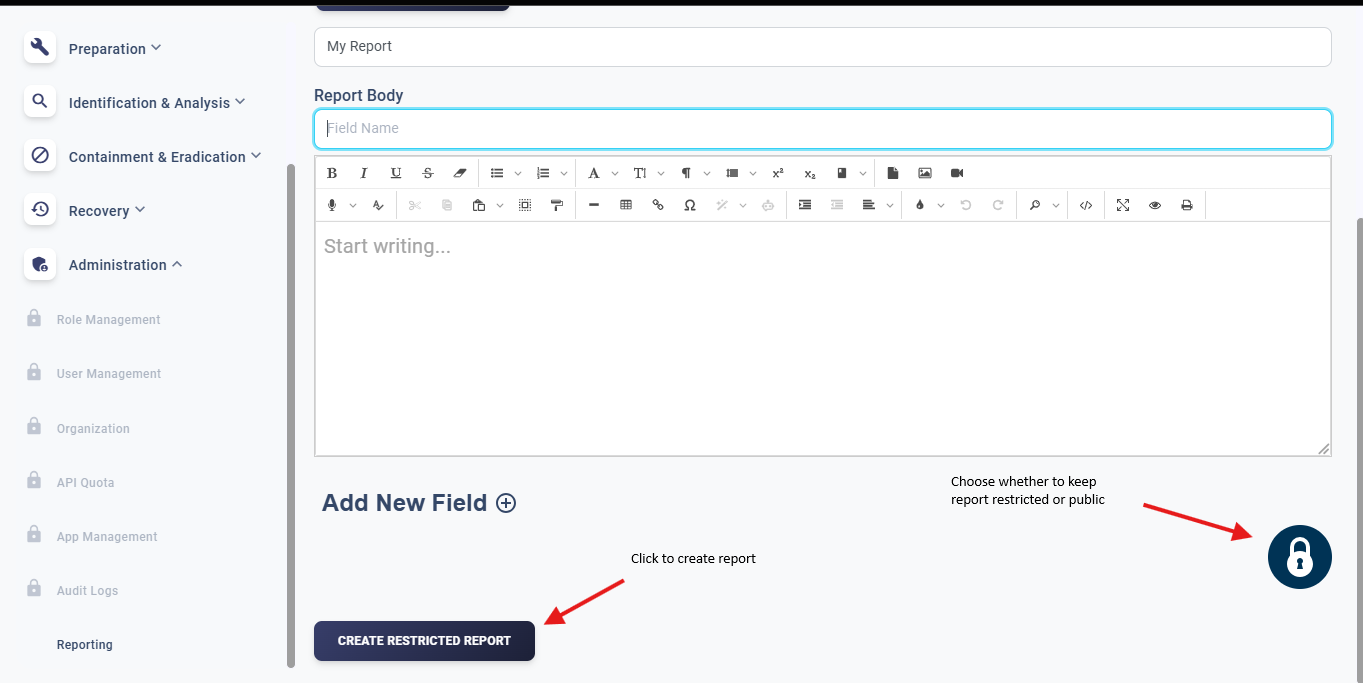
Once your report is completed, you can:
- Make it publicly accessible.
- Keep it restricted for your use only by clicking the LOCK icon.
🛡️ Security Note: Sensitive reports should always be restricted to authorized personnel to maintain confidentiality.