How to Reset Your Password on Deepaiges
If you’ve forgotten your password, follow these steps to regain access to your account:
Steps to Reset Your Password
Step 1: Enter Incorrect Password
When signing in, if you enter the wrong password, a Forget Password tag will appear.
💡 Note: Double-check your caps lock and keyboard layout before proceeding to avoid unnecessary attempts.
Step 2: Click “Forget Password”
Click on the Click Here link provided with the Forget Password tag.
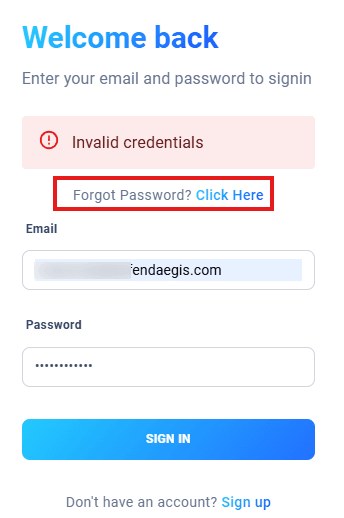
Step 3: Enter Registered Email
You will be redirected to a page where you’ll need to enter the email address you used while signing up.
📌 Important: Ensure you have access to this email account.
Step 4: Check Your Inbox
Look for an email from Deepaiges containing a password reset link. If it doesn’t appear in your inbox within a few minutes, check your spam or junk folder.
Step 5: Reset Your Password
Click on the link in the email to access the password reset page.
Password Best Practices:
- At least 12 characters long.
- Includes:
- One uppercase letter.
- One lowercase letter.
- One number.
- One special character.
- Avoid predictable patterns like 12345 or personal details.
- Use a password manager for secure storage.
FAQs
1. What if I don’t receive the reset email?
Double-check the email address you entered. If it’s correct but you still don’t receive the email, try resending it.
2. Can I reset my password if I’ve lost access to my email?
Unfortunately, you’ll need access to the registered email. Contact support if you’ve lost access to your email account.
3. What should I do after resetting my password?
Log in with the new password and update your account settings if needed.
Tips for Securing Your Account
- Regularly Update Your Password: Change it every 6–12 months or immediately if you suspect a security breach.
- Backup Recovery Codes: Keep recovery codes in a secure location for emergencies.
By following these steps and tips, you can reset your password and secure your Deepaiges account effortlessly.