How to Create New Roles in Your Organization
To create new roles within your organization, navigate to Administration → Role Management. The only prerequisite is that you must have admin privileges.
Steps to Create a Role
-
Navigate to the Organization Section
Once in the Organization section, click on the Create New Role button: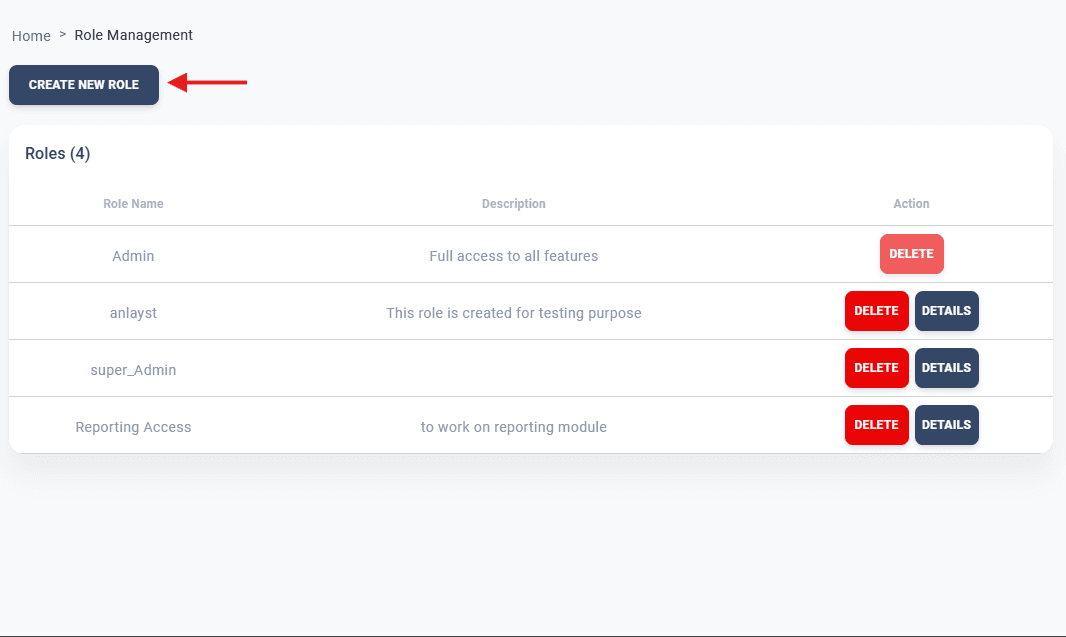
-
Fill in the Role Details
You will be prompted to enter the following:- Role Name: Enter the name of the role. For example, if the role involves performing analysis, you can name it Analyst.
- Role Description: Provide a brief description of the role. For the Analyst role, the description could be:
“This role involves analyzing data and providing insights at the end of the month.”
-
Assign Permissions
You will need to assign both Menu Permissions and Administrative Permissions for the role.
Tip: Keep role names and descriptions concise and self-explanatory. This helps in better management and understanding across the team.
Understanding Permissions in Deepaiges
Permissions define what sections and features a user with this role can access. The user is restricted to the permissions assigned and cannot access features outside their scope.
Menu Permissions vs. Administrative Permissions
-
Menu Permissions: These dictate what features the user can access.
Example: An Analyst role might have access to the Senior Analyst Dashboard and/or Technical Analyst Dashboard under the Dashboard section. -
Administrative Permissions: These relate to managing roles and users. Administrative permissions are further divided into:
- Role Permissions: Define if the user can create, read, update, delete, or assign roles.
- User Permissions: Define if the user can invite, approve, read, or reject users.
Note: Carefully review permissions before assigning them to avoid granting unnecessary access. Incorrect permissions may lead to data breaches or operational issues.
-
Create the Role
After assigning the permissions, click on the Create Role button to finalize the process.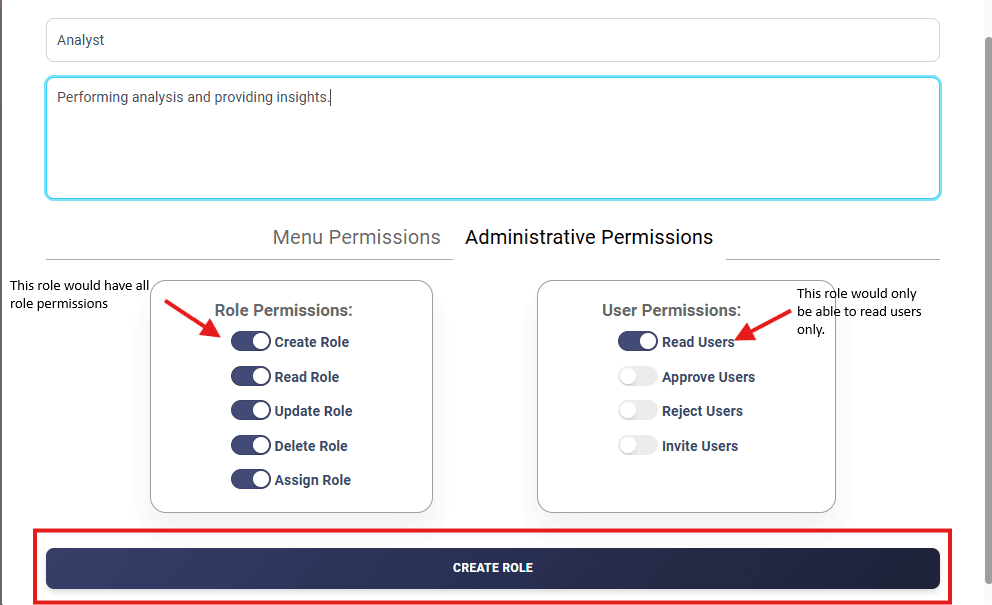
Tip: Test the new role by assigning it to a test user to ensure the permissions work as intended.
FAQs
-
What should I do if I accidentally assign wrong permissions?
Navigate to the role in User Management and edit the permissions. -
Can I delete a role later?
Yes, roles can be deleted from the Role Management section, but make sure no active users are assigned to the role before deletion.