How to Sign In on Deepaiges
If you are a registered user, you can sign in to your Deepaiges account using a secure two-step authentication process.
Prerequisites
Before signing in:
- Ensure you have an active Deepaiges account.
- Have installed Google Authenticator app on your mobile device.
- Have access to the email and password you used during registration.
Steps to Sign In
Navigate to login page
Go to the Deepaiges Login Page, where you should see a form.
Enter Credentials
Enter your Email and Password you provided during registration.
Retrieve OTP
Open your Google Authenticator app on your phone and retrieve the One-Time Pin (OTP).
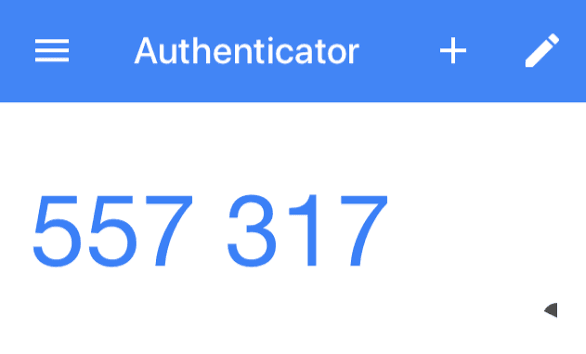
Enter OTP
Enter the OTP to complete the sign-in process.
What to Do If You Don’t Have Google Authenticator
Google Authenticator adds an additional layer of security to your account. If you haven’t installed it yet, follow the steps below:
Download Google Authenticator
Download the app from:
- Google Play Store (Android)
- App Store (iOS)
Setup the app
Scan the QR Code provided during registration.
Generate OTP
Open your Google Authenticator app on your phone and retrieve the One-Time Pin (OTP).
Enter OTP
Enter the OTP to complete the sign-in process.
Tips for a Seamless Sign-In
:::tip
- Ensure your device’s time settings are accurate and synced to the internet.
- If the OTP isn’t working, sync the Google Authenticator app by following the app’s instructions.
- Use a strong internet connection to prevent login delays.
💡 Tip: Enable backup options in the Google Authenticator app to avoid losing access if your device is lost or reset. :::
FAQs
-
Why can’t I sign in?
- Double-check your email and password.
- Ensure your Google Authenticator app is synced correctly.
-
Can I use a different authenticator app?
- While Google Authenticator is recommended, other TOTP-compatible apps may work as well.
-
What happens if I lose my device with the authenticator app?
- Contact support to reset your two-factor authentication setup.
Redirection to the Admin Dashboard
Once you successfully log in, you’ll be redirected to the Admin Dashboard, where you can manage your account and access modules assigned to you by the admin.
🛡️ Security Note: Always log out after your session to ensure unauthorized users cannot access your account.